
Glasses-free 3D display screens look similar to ordinary monitors, but they contain not just a display panel—they also involve 3D optical structures, image processing, content playback, and, in some products, cameras or eye-tracking modules.
Therefore, they cannot be maintained in daily use exactly like ordinary TVs or monitors.
Proper installation, cleaning, and operating habits not only preserve the clarity of the 3D image but also help reduce problems such as ghosting, crosstalk, and brightness anomalies.
Below, from a practical usage perspective, are the precautions for glasses-free 3D display screens.
Confirm the Viewing Position Before Installation
A glasses-free 3D display screen is not "the same wherever you put it."
Different technical solutions usually have corresponding optimal viewing distances and viewing zones.
Before installation, confirm the main direction from which the audience will view, and the approximate distance between the screen and the audience.
If, after installation, the audience is often outside the optimal viewing zone, the 3D effect may noticeably decline even if the monitor itself is not faulty.
Common symptoms include ghosting, weakened stereoscopic perception, and left/right view misalignment.
Therefore, for public settings such as malls, exhibition halls, and museums, it is best to determine the screen's angle and height based on actual pedestrian flow.
Do Not Casually Change the Screen Angle
The glasses-free 3D effect is closely tied to the optical structure.
Especially for devices using lenticular lenses or parallax barriers, a marked change in viewing direction may alter the images received by the left and right eyes.
So after installation, frequently changing the screen's tilt angle is not recommended.
If reinstallation or stand adjustment is needed, reconfirm the optimal viewing zone.
For commercial projects, it is best to conduct on-site testing before formal installation rather than discovering an unsuitable viewing position afterward.
Always Power Off Before Cleaning the Screen
When cleaning a glasses-free 3D display screen, the first step is not grabbing a cloth—it is turning off the device and disconnecting the power.
Manufacturers' maintenance recommendations for LCD/OLED display equipment typically require shutting down the device before cleaning and preventing liquids from entering the screen edges or internal electronic components.
Especially for large commercial displays, cleaning directly while the device is running and the screen is hot is not advisable.
Waiting for the screen surface to cool after powering off reduces operational risk.
Never Spray Water Directly onto the Screen
This is the most important rule in glasses-free 3D display screen maintenance.
Do not spray cleaner, water, or alcohol directly onto the screen.
Liquid may seep into the interior along the screen edges and damage electronic components.
The correct method is:
First use a clean microfiber cloth to gently wipe off dust.
If fingerprints or stains remain, follow the device manufacturer's instructions to lightly dampen the cloth, then wipe gently.
For routine cleaning, avoid spraying liquid directly onto the screen and use a soft microfiber cloth instead.
Do Not Scrub Hard with Paper Towels or Rough Cloth
The surface of a glasses-free 3D display screen may include special coatings or optical structures.
Ordinary paper towels, kitchen paper, and rough towels can create fine scratches.
More importantly, do not press hard while wiping.
The correct approach is to let the microfiber cloth gently touch the screen surface and let the cloth lift away dust and stains, rather than cleaning through vigorous rubbing.
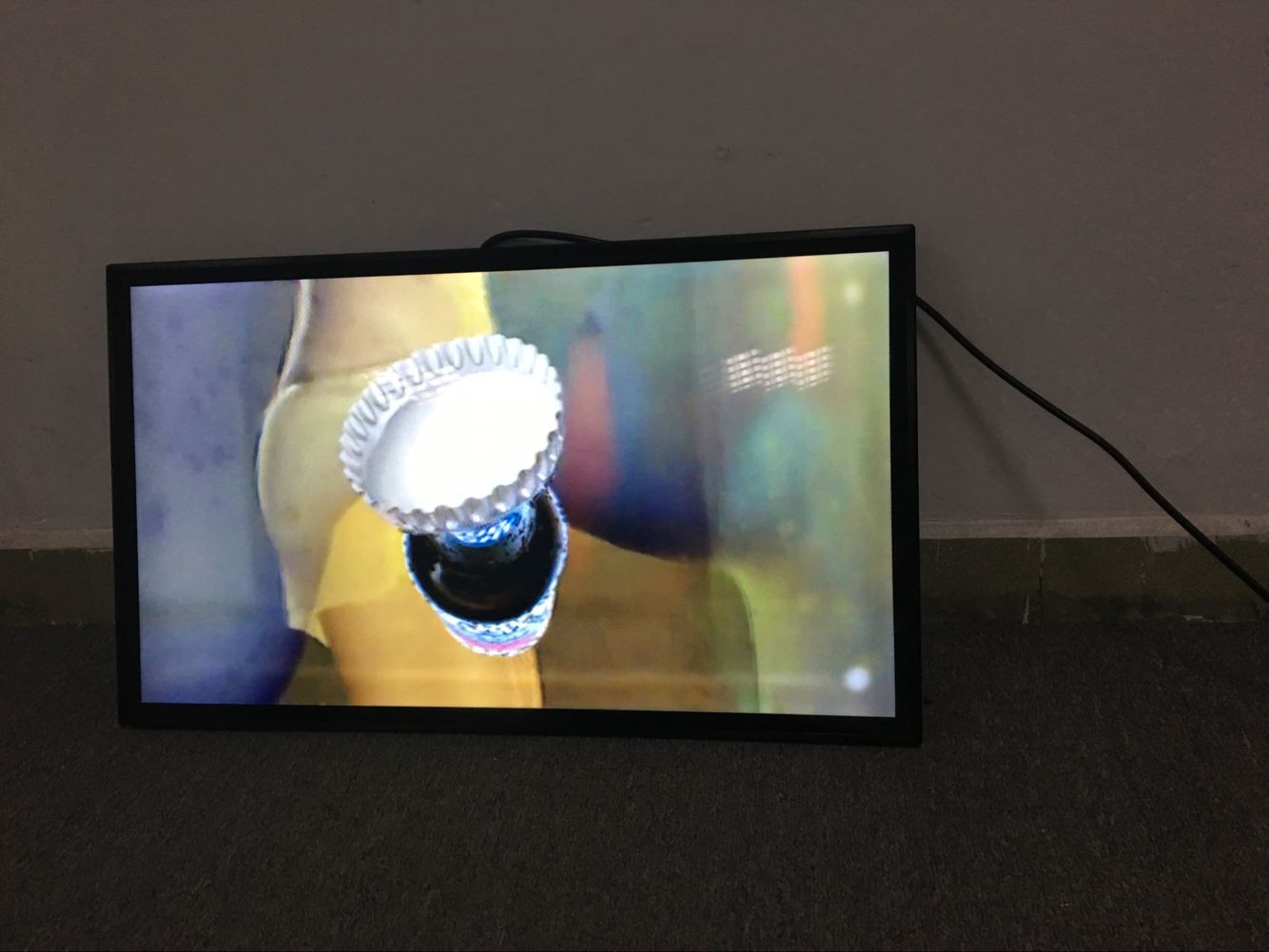
Excessive pressure can damage the panel or cause display anomalies.
Do Not Use Just Any Cleaner
Don't assume "the screen is dirty, so a glass cleaner wipe will do."
Different display products have different surface coatings, and the alcohol, ammonia, solvents, or other chemicals in some cleaners may damage the surface coating.
Avoid strong solvents, ammonia-based cleaners, and abrasive materials. If a dedicated cleaning product is used, confirm that it is suitable for the specific display surface.
Therefore, glasses-free 3D display screens should preferably be cleaned according to the maintenance instructions provided by the device manufacturer.
Just because another monitor tolerates a certain cleaner does not mean it can be applied to glasses-free 3D equipment.
Maintain Ventilation Space
Glasses-free 3D display screens generate heat during long operating hours.
If the device is installed inside enclosed cabinets, walls, or display structures, heat dissipation should be planned in advance.
Commercial advertising equipment in particular often requires continuous playback for long periods.
Do not completely block the ventilation holes, and do not stack cardboard boxes, fabric, or other items behind the device.
If the device operates in a high-temperature environment for a long time, operational stability may suffer and the service life of some electronic components may be shortened.
Therefore, reserve reasonable air-circulation space during installation.
Avoid Humidity, Dust, and Liquids Entering the Device
Glasses-free 3D display screens are best used in relatively stable, dry, and clean environments.
If the device is installed in restaurants, exhibition sites, factories, or semi-outdoor areas, pay extra attention to dust, oil fumes, moisture, and liquid splashes.
Note especially:
the screen can be wiped, but liquid must not be allowed to enter the screen's interior.
If liquid is found to have entered the device, do not keep repeatedly power-cycling to test it.
Stop using it immediately and have it inspected according to the manufacturer's repair process.
Do Not Play Low-Quality 3D Content for Long Periods
When many people find the glasses-free 3D effect poor, their first reaction is that the monitor is faulty.
In fact, content production equally affects the final result.
If the left and right views are not correctly matched, or the foreground-background depth relationships in the picture are unreasonably designed, ghosting, spatial misalignment, and unnatural stereoscopic perception may occur.
Glasses-free 3D display screens therefore require content matched to the device's technical solution.
Especially for commercial display projects, before going live it is advisable to test:
Video resolution.
Frame rate.
View format.
3D content mapping method.
Color performance.
Fast-motion scenes.
Text and product edges.
This helps discover compatibility issues between content and equipment earlier.
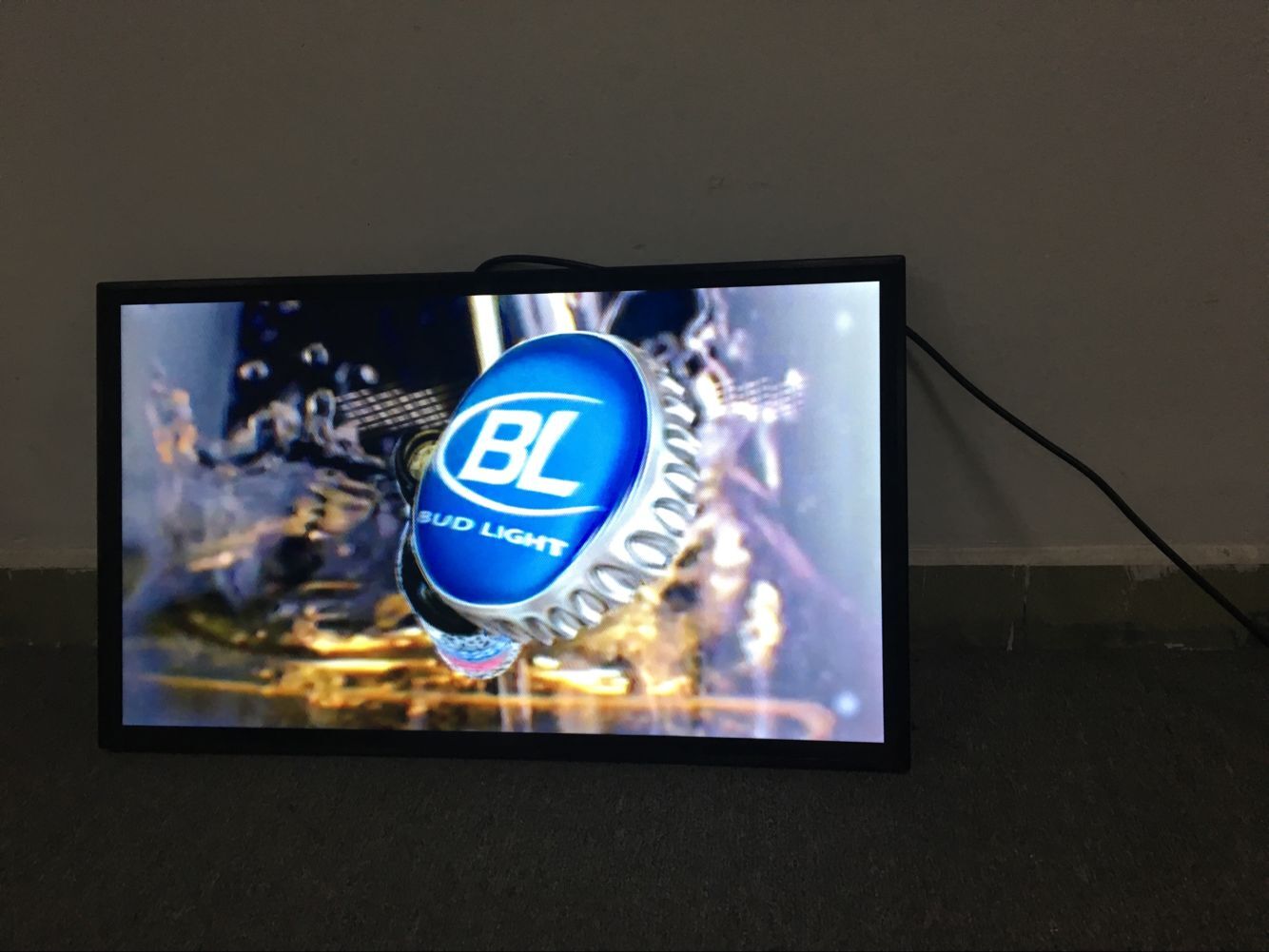
Do Not Overdo the 3D for the "Out-of-Screen" Effect
Glasses-free 3D is not about objects getting as close to the viewer as possible.
If all content is designed to strongly "burst out of the screen," the picture may instead look unnatural.
High-contrast elements such as people, text, and product edges are especially prone to revealing crosstalk and ghosting if depth relationships are poorly designed.
Excellent glasses-free 3D content usually establishes clear spatial layers among foreground, middle ground, and background.
Content production should therefore pursue a natural sense of space rather than simply maximizing the out-of-screen distance.
Regularly Check Device Status During Long Operating Hours
For commercial glasses-free 3D screens running several hours a day or around the clock, establishing a simple inspection routine is recommended.
Each day, observe:
Whether the picture is normal.
Whether the 3D effect is stable.
Whether obvious ghosting appears.
Whether brightness has changed abnormally.
Whether flickering occurs.
Whether the fan or cooling system is working.
Whether connectors and power cables are loose.
Whether the device housing is abnormally hot.
If anomalies appear, do not mask the problem through repeated reboots.
Record the symptoms and further inspect the device, signal source, and playback content.
Do Not Frequently Plug and Unplug Signal Cables
Although HDMI, DisplayPort, USB, and other ports can be normally connected and disconnected, frequent plugging and unplugging while the device is continuously running is not recommended.
If you need to change playback devices or reconnect signal sources, it is best to first turn off the relevant devices per the device instructions.
For permanently installed commercial displays, fix the connections among the player, network equipment, and display screen to reduce day-to-day manual operations.
This also lowers the probability of loose connectors and connection anomalies.
Protect the Surface of the 3D Display Screen
If the glasses-free 3D display screen is installed where people can easily touch it—such as malls, exhibition halls, schools, or experience stores—consider adding appropriate physical protection.
In particular, avoid:
Hard impacts.
Children tapping the screen.
Bumping the panel while moving equipment.
Sharp objects scratching across the screen.
Attaching unverified tape or protective materials to the screen.
If the device uses a special optical surface, arbitrarily adding protective film may also affect the 3D effect, so confirm compatibility with the device before adding any protective material.
Do Not Simply Leave the Device Unused for Long Periods
If a glasses-free 3D display screen is to be decommissioned for a long time, give it a complete cleaning and disconnect the power as recommended by the manufacturer.
The storage environment should be kept as dry and clean as possible, avoiding prolonged direct sunlight, high humidity, and heavy dust.
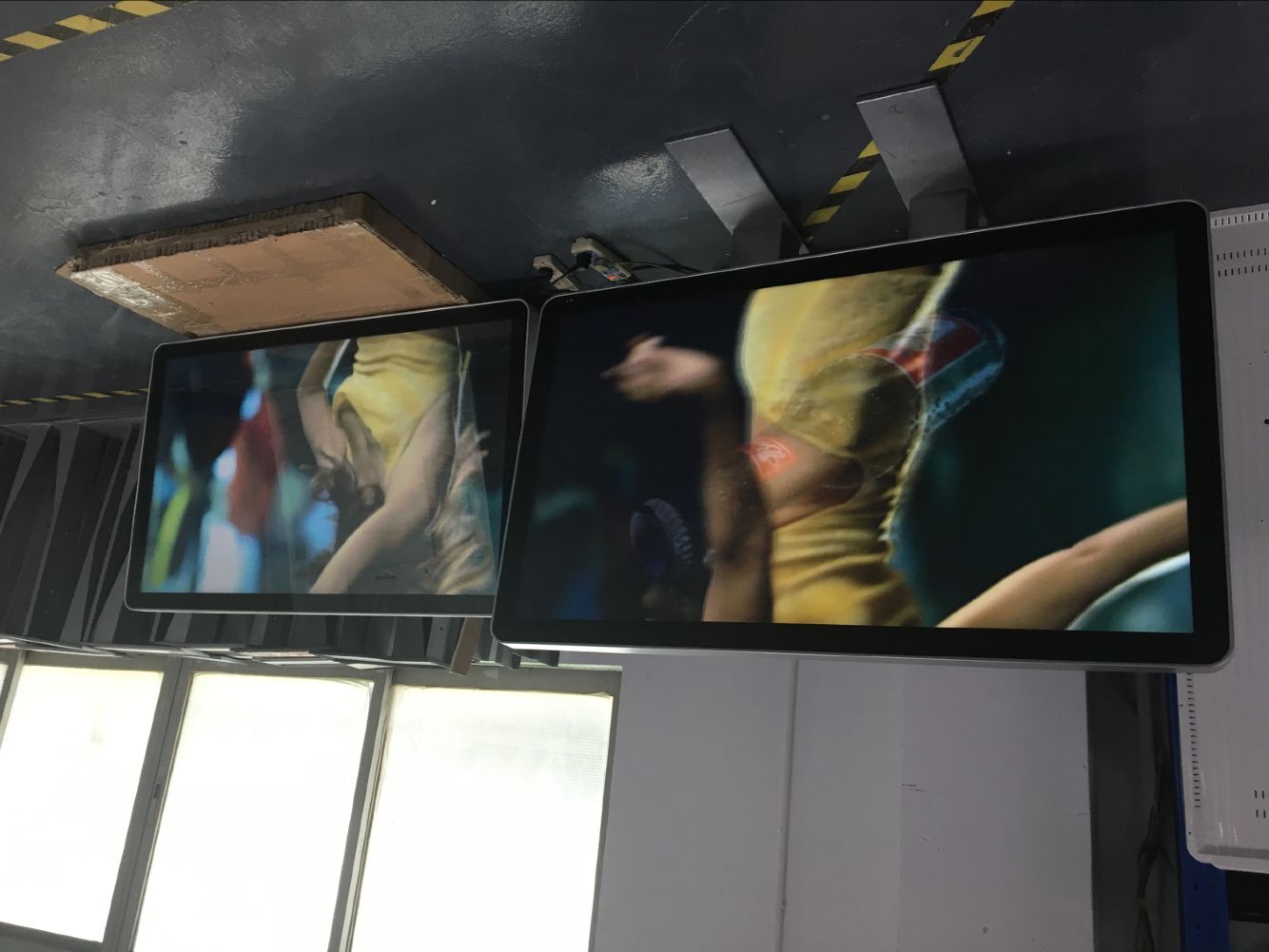
Before reactivation, check the power supply, signal cables, ventilation openings, and screen surface.
If the device has been warehoused for a long time or experienced large temperature differences, also watch for condensation.
Confirm the device is in normal condition before resuming formal operation.
Daily Maintenance Checklist for Glasses-Free 3D Display Screens
If the device is used in commercial settings such as malls, exhibition halls, or museums, you can establish a simple maintenance table.
Daily checks
Whether the screen picture is normal
Whether the 3D effect is normal
Whether obvious ghosting appears
Whether playback content is normal
Whether the device is abnormally hot
Whether the ventilation openings are blocked
Weekly checks
Clean dust from the screen surface
Check power and signal cables
Check device connectors
Check whether the mounting stand is stable
Check whether the playback system is normal
Periodic maintenance
Clear accumulated dust around the device
Check the cooling system
Check playback software and the system
Check 3D content formats
Record anomalies and repair logs
Actual maintenance cycles should also be adjusted according to the device manufacturer's maintenance requirements, the installation environment, and daily operating hours.
If Ghosting Appears, What Should You Check First?
If the device suddenly shows obvious ghosting, don't immediately conclude the screen is broken.
You can check in the following order.
First, check the viewing position.
Confirm whether the viewer is within the device's effective 3D zone.
Second, check the playback content.
Confirm whether the 3D content format matches the device.
Third, check the signal source.
Confirm whether the player, computer, HDMI, or other connections are normal.
Fourth, check the screen surface.
Visible stains on the optical surface may also affect the visual effect.
Fifth, check the device settings.
Confirm whether the 3D mode, view mapping, or related parameters were mistakenly changed.
If all these items are normal but ghosting persists, then contact the equipment supplier for further inspection.
Proper Maintenance Keeps the Glasses-Free 3D Effect Intact
Maintaining a glasses-free 3D display screen is not complicated.
What truly needs to be avoided are operations that seem ordinary but can easily cause damage.
Such as spraying water directly onto the screen.
Scrubbing hard with paper towels.
Using unverified chemical cleaners.
Blocking the ventilation openings.
Frequently changing the screen angle.
Long-term playback of mismatched 3D content.
Ignoring ghosting, flickering, and abnormal heating issues.
As long as you establish correct usage habits and maintain the device according to the manufacturer's maintenance requirements, a glasses-free 3D display screen can maintain stable display performance over the long term.
For commercial projects, the goal of maintenance is not merely keeping the screen "lit," but keeping the 3D picture consistently clear, stable, and natural.
Looking for Commercial Glasses-Free 3D Display Solutions?
FreeGlass3D (Shenzhen ZXT LCD Technology Co., Ltd.) designs and manufactures commercial-grade autostereoscopic 3D monitors, spatial digital signage, and multi-view 3D video walls with 4K/8K resolution and eye-tracking options for retail, exhibitions, transport, and DOOH projects.